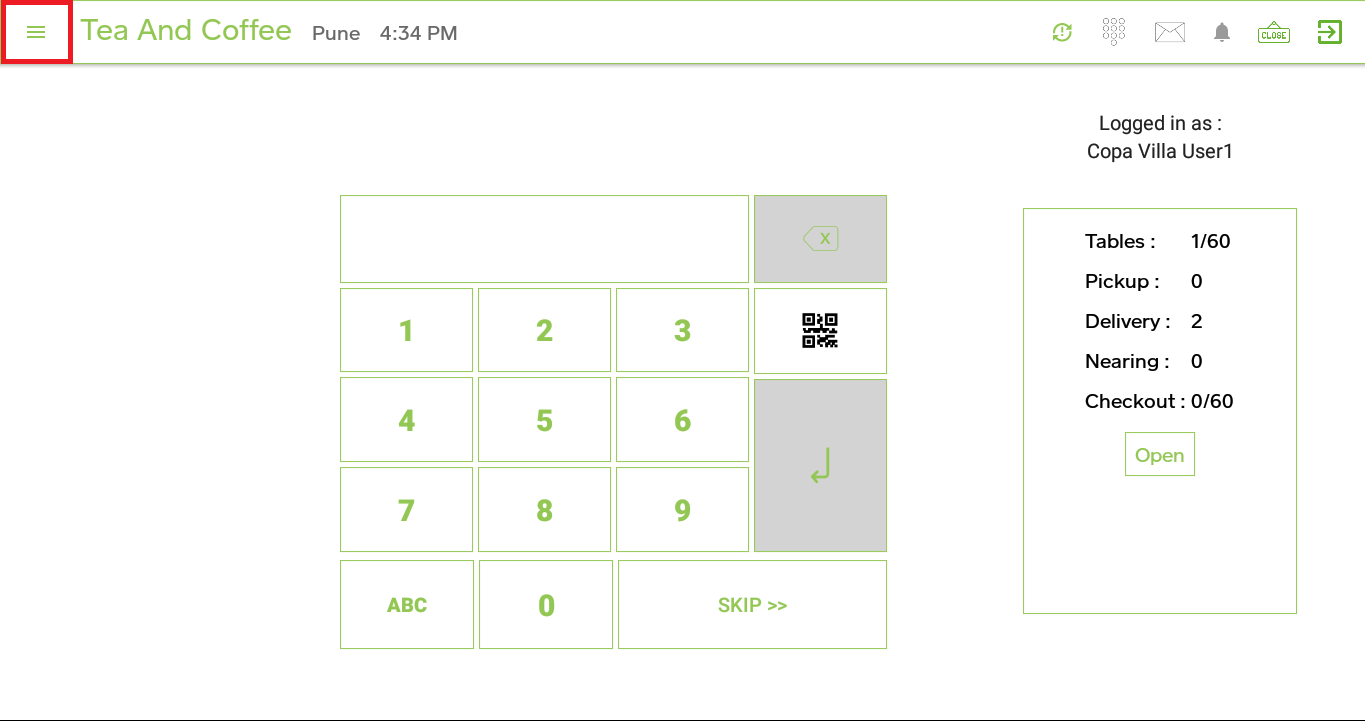
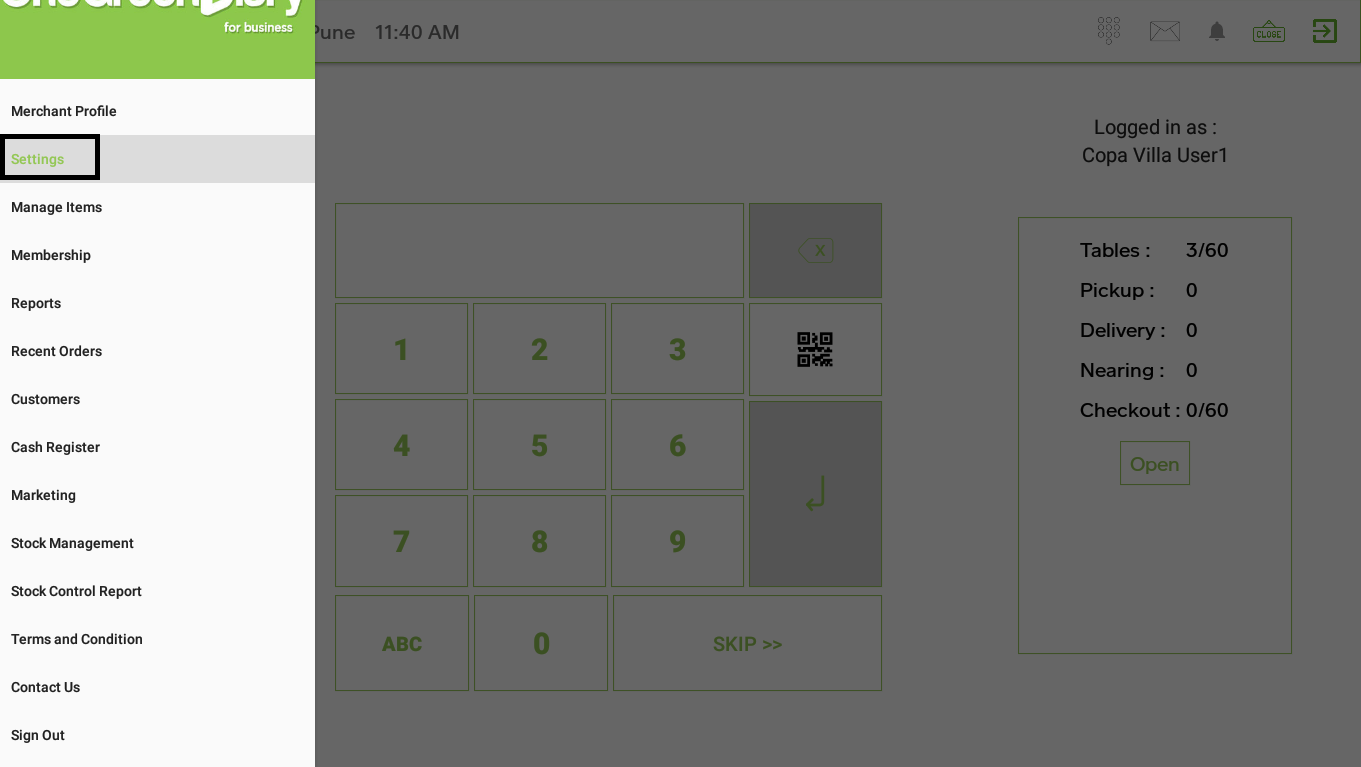
Go to ‘Settings’ from menu symbol 
Select ‘Printer Settings’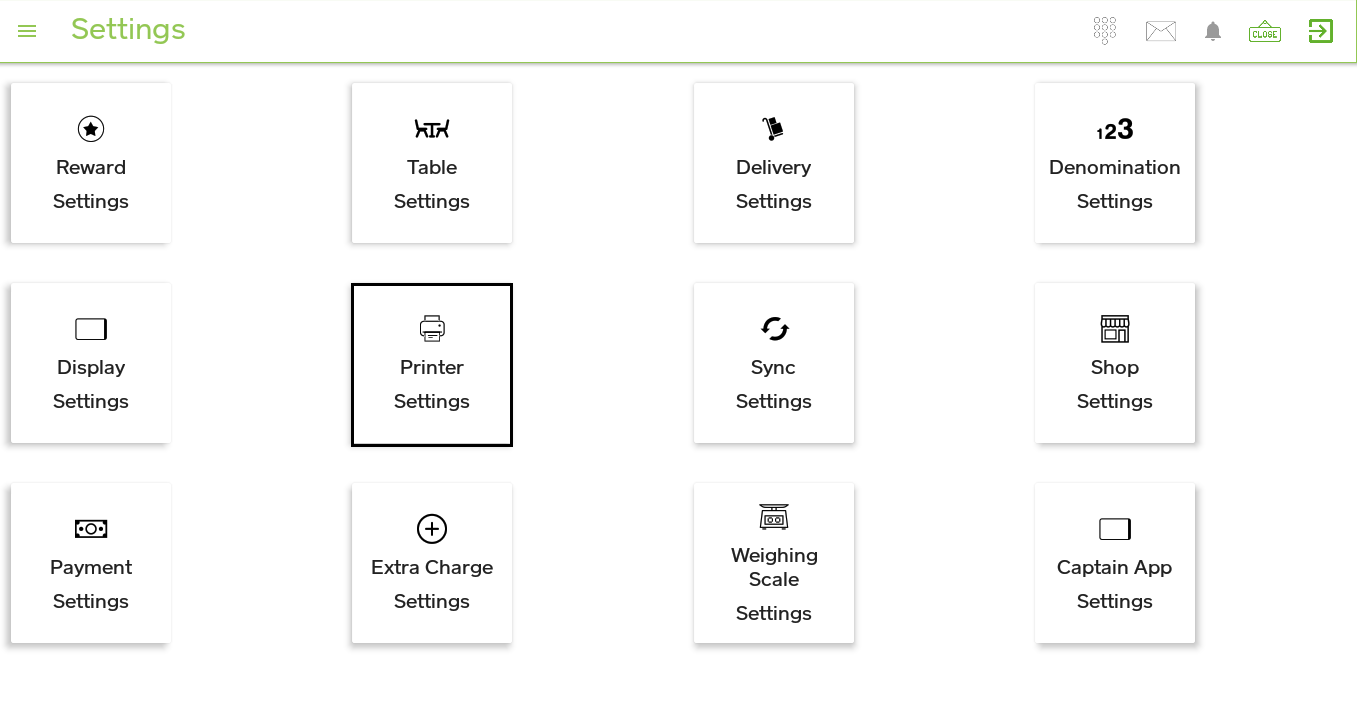
Enable switch for ‘Quick Cash’, ‘Quick Coupon’ & ‘Quick Card’ and click on ‘SAVE’ button > message will appear ‘Settings updated successfully’ then click on ‘OK’ > click on ‘MULTI-PRINTER SETTINGS’ 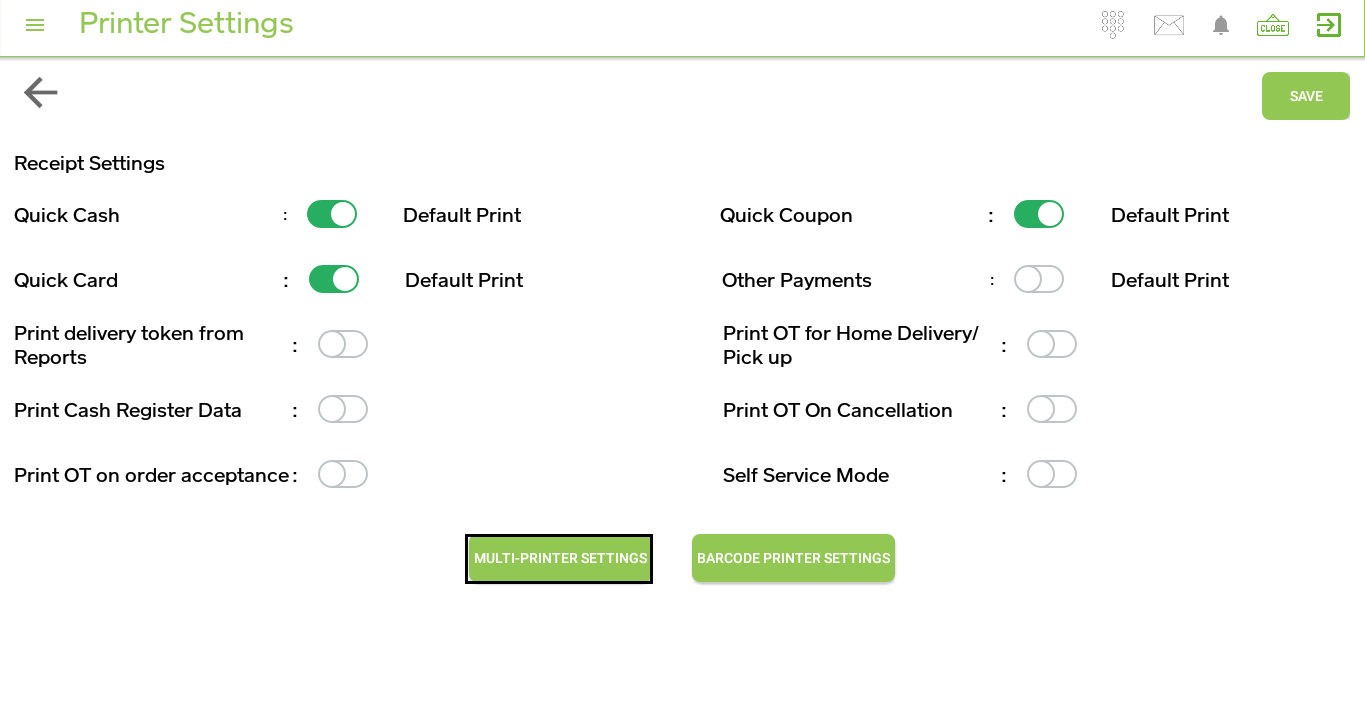
Click on ‘ADD PRINTER’ (add a printer for KOT)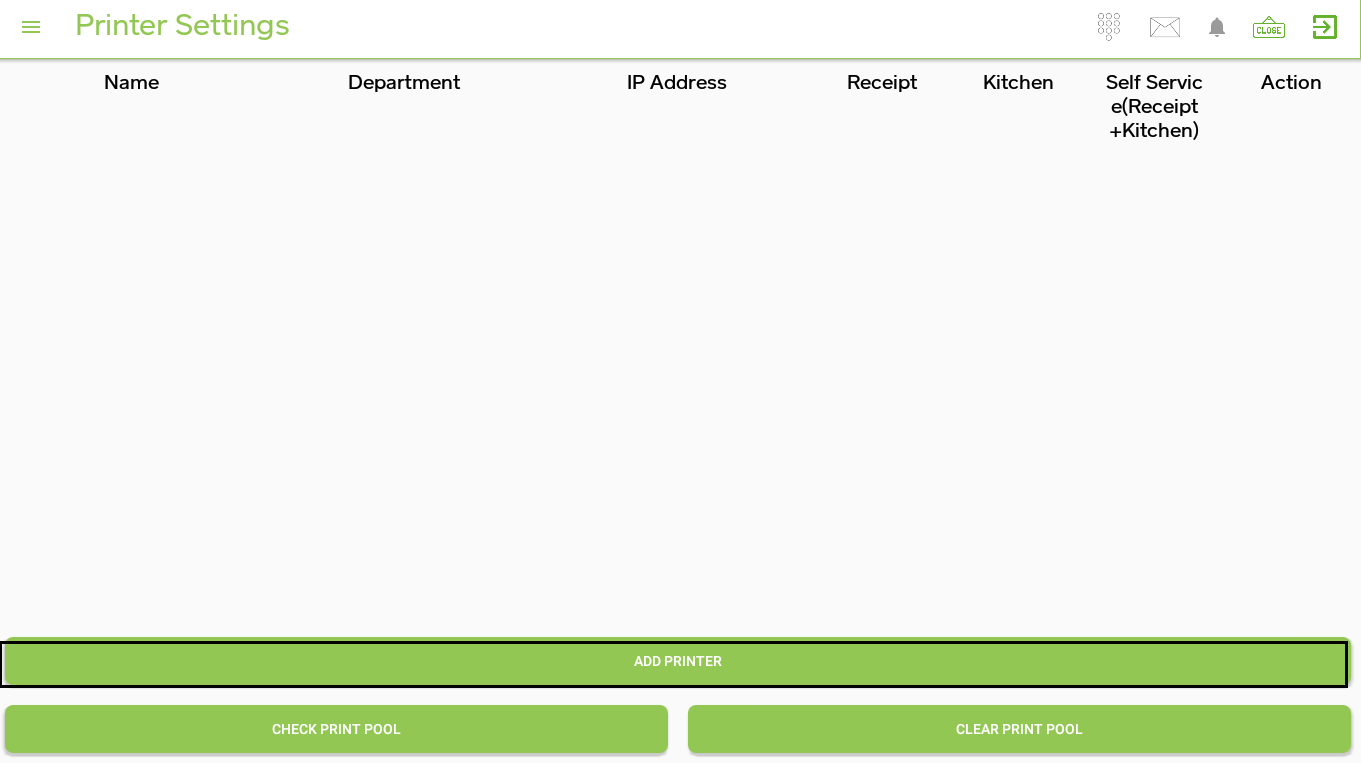
Enter ‘Printer Name’, ‘Quantity’, select ‘Paper Size’ as ‘2 inches’ for T1 mini and ‘3 inches’ for T1 & T2 machine, ‘Select Printer from Settings’ as ‘Sunmi T1 Inner Printer’ from drop-down options > if you want to print KOT item wise then tick ‘Print KOT ItemWise’ > select ‘Order Ticket’ in the drop-down option of ‘Select Template Type’ > select ‘Order ticket with the medium font’ in drop down of ‘Select Template Name’ > tick the option which you want to print on KOT under ‘Also Print’ 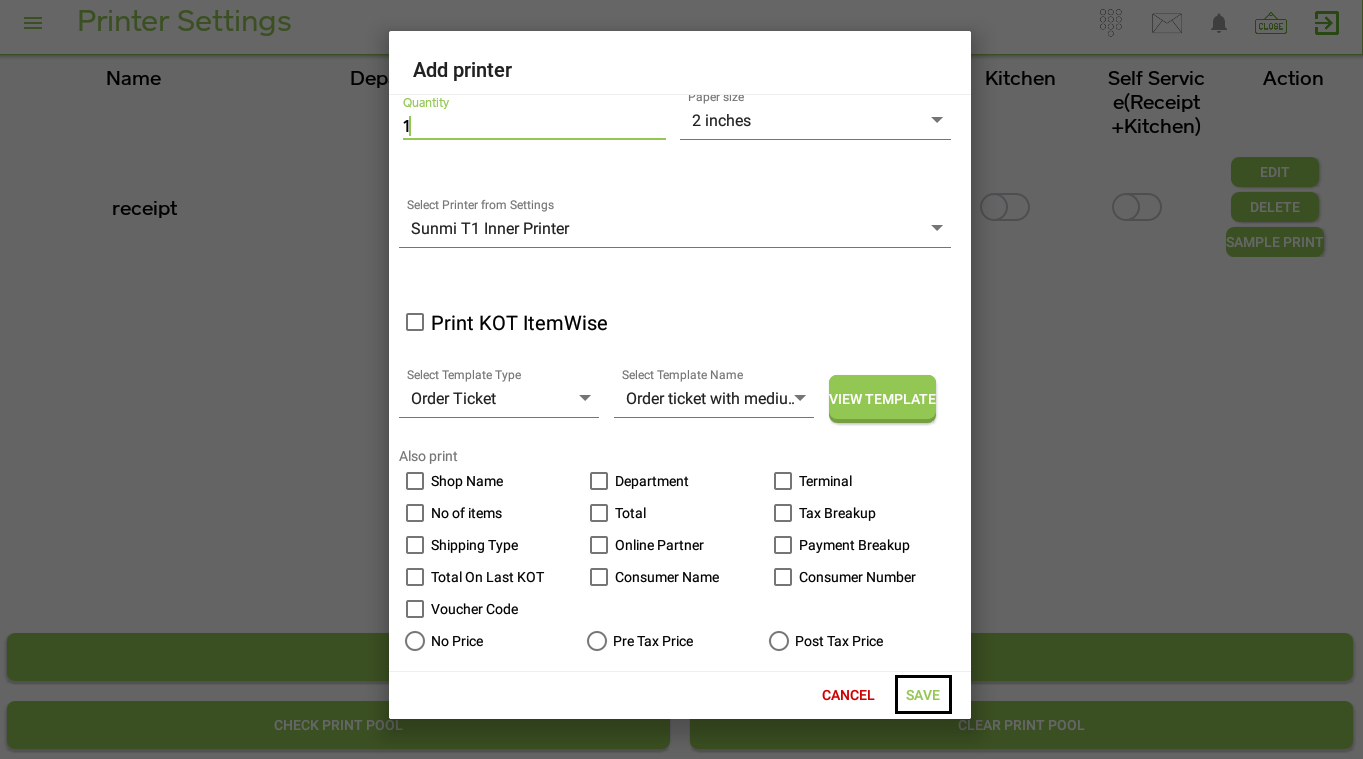
Click on the ‘SAVE’ button and the printer will be displayed on the screen 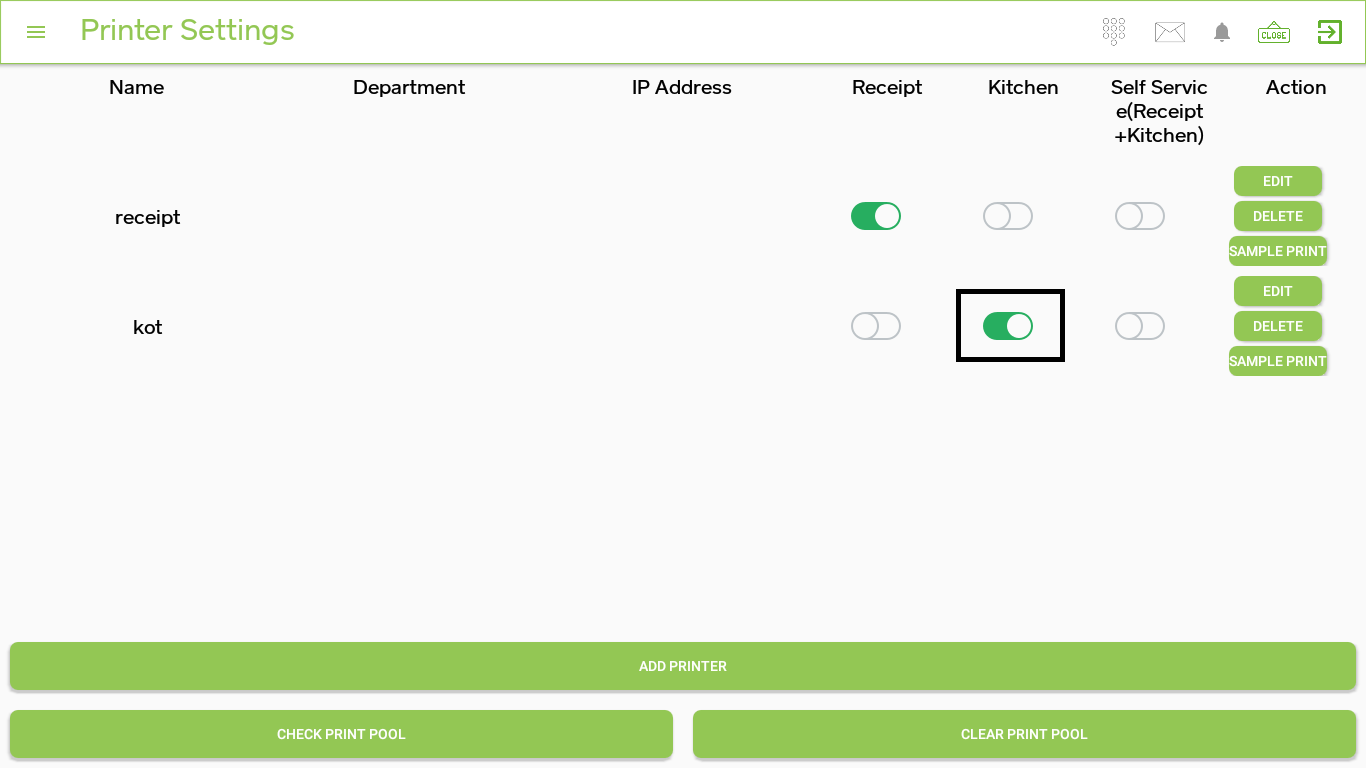
Enable switch for ‘Kitchen’. You can take a sample print by clicking on the ‘SAMPLE PRINT’ button.