Generating a cancellation report can help you identify opportunities to improve your business and retain customers. By understanding the reasons behind cancellations and taking action to address them, you can increase customer loyalty and drive revenue growth.
Please follow the steps for the cancellation report
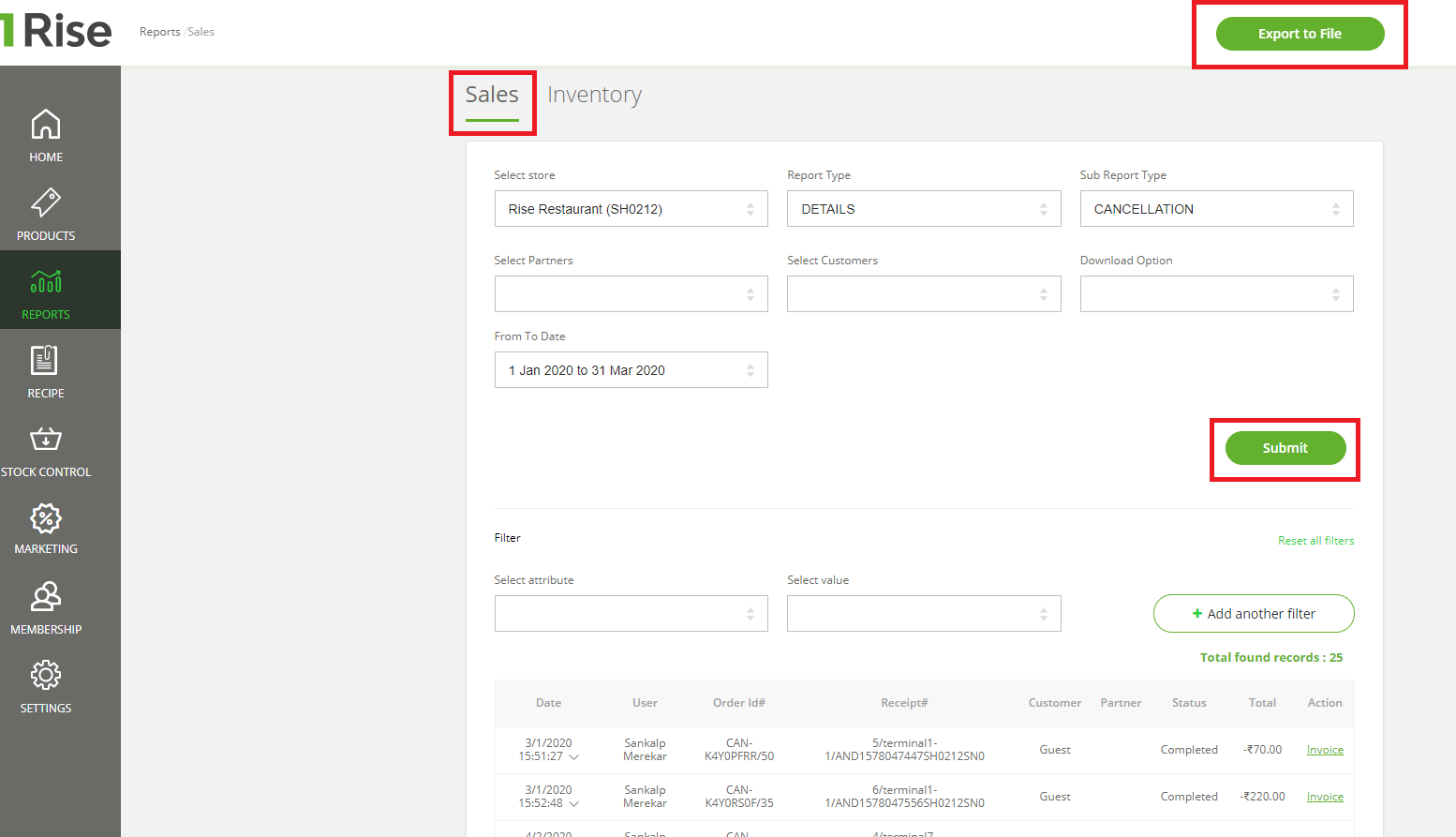
To generate a cancellation report, please follow these steps:
- Log in to the Back Office.
- From the left menu, click on “Reports”.
- Click on the “Sales” tab.
- Select your shop from the “Select Store” drop-down.
- From the “Report type” drop-down, select “Details”.
- From the “Sub Report Type” drop-down, select “CANCELLATION”.
- Select the date range using the “From To Date” fields.
- Click on the “Apply” button.
- Finally, click on the “Submit” button to view the report.
- The report will be displayed on the screen, and you can download it in Excel format by clicking on the “Export to File” button at the top right.