Rise POS
    • Pricing
    • Support
    Get Started

    How can I generate a pre-checkout cancellation report from the Back Office?

    Feb 6, 2021•1 min read•Updated Sep 3, 2023

    In summary, generating a pre-checkout cancellation report can provide valuable insights into customer behaviour and help businesses improve their checkout process, increase revenue, and enhance the overall customer experience

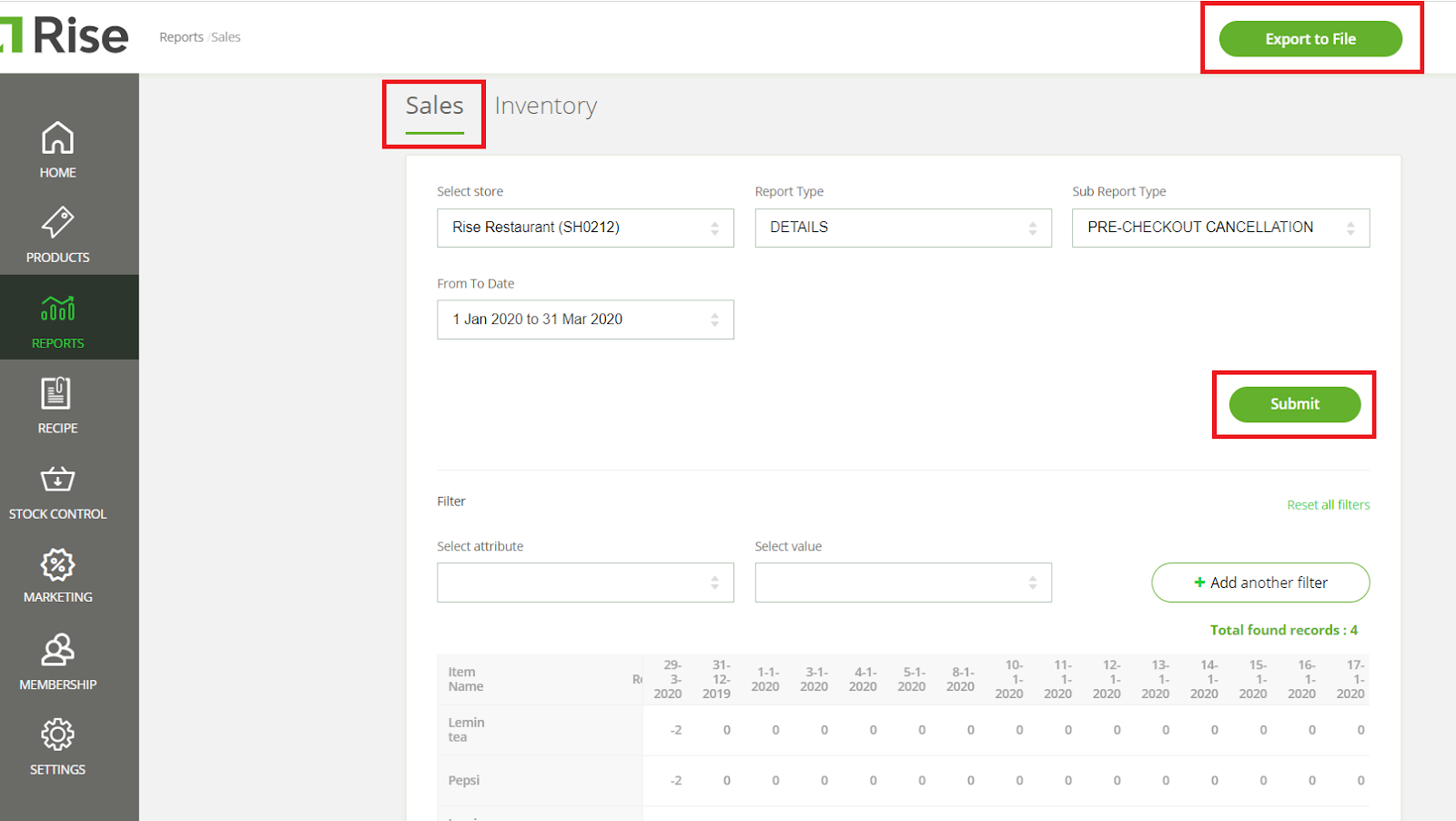
    To generate a pre-checkout cancellation report, follow these steps:

    • Login on Back Office.
    • From the left menu click on ‘Reports’.
    • Click on the ‘Sales’ tab.
    • Select shop from the ‘Select Store’ drop-down.
    • From the next dropdown select ‘Report type’ and click on ‘Details’.
    • Now select the ‘PRE-CHECKOUT CANCELLATION’ option from the drop-down list of ‘Sub Report Type’.
    • Select the date range from ‘From To Date’ and click on the ‘Apply’ button.
    • As the last step clicks on the ‘Submit’ button to view the report.
    • The report will be displayed on the screen which you can download in Excel format by clicking on the ‘Export to File’ button at the top right.
    More Help Topics

    Still Need Help?

    Contact our support team for assistance with your questions

    Rise POS

    Cloud-based POS solution for modern bakeries and restaurants.

    4.5 on Google Play

    POS

    • Billing
    • Inventory
    • Production Planning
    • Reports

    Solutions

    • E-commerce
    • ERP
    • Third Party Integrations

    Rise ERP

    • Rise ERP Overview
    • Rise POS Accounting
    • Rise Production
    • Karo HR
    • Stock Ordering App

    Pricing

    • View Plans

    Company

    • About Us
    • Blog
    • Contact
    • Help Center
    • Privacy Policy
    • Terms of Service

    © 2026 Rise POS. All rights reserved.