In summary, generating an order items category report can provide businesses with valuable insights into product performance, customer behaviour, and inventory management. This information can be used to optimize sales efforts, improve customer experience, and drive business growth.
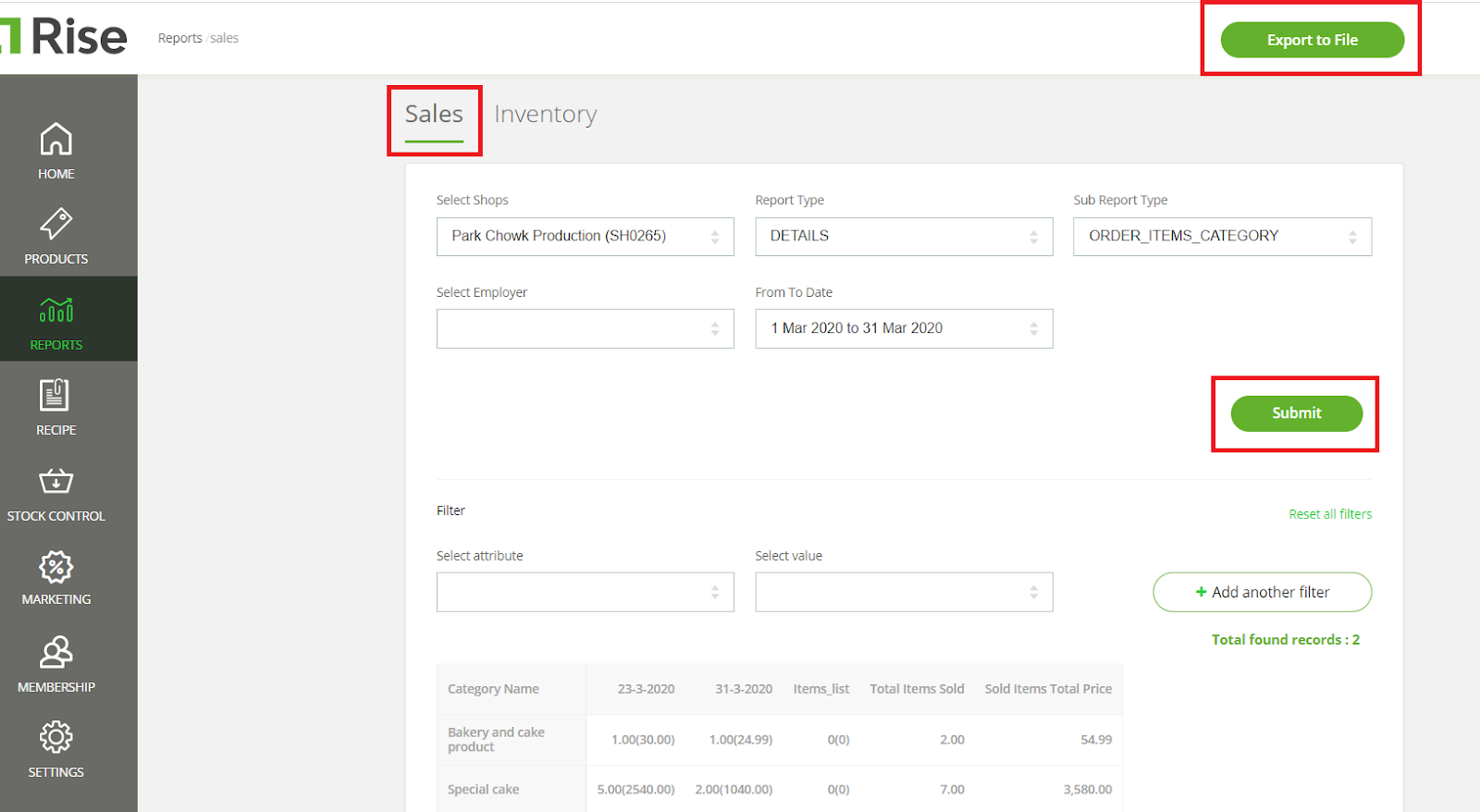
Here are the steps to follow to generate an order items category report:
- Log in to the Back Office.
- From the left-hand menu, select ‘Reports’.
- Click on the ‘Sales’ tab.
- Select the appropriate store from the ‘Select Store’ dropdown.
- From the ‘Report type’ dropdown menu, choose ‘Details’.
- From the ‘Sub Report Type’ dropdown menu, select ‘ORDER_ITEMS_CATEGORY’.
- (Optional) Select an employer from the ‘Select Employer’ dropdown.
- Choose the date range for the report by specifying ‘From To Date’ and click on ‘Apply’.
- Finally, click on the ‘Submit’ button to view the report, which can be downloaded in excel format by clicking on the ‘Export to File’ button at the top right corner of the screen.