Please follow steps for adding Bluetooth printer
Turn on the Bluetooth printer.
Now turn on the Bluetooth of the device, paired with a Bluetooth printer.
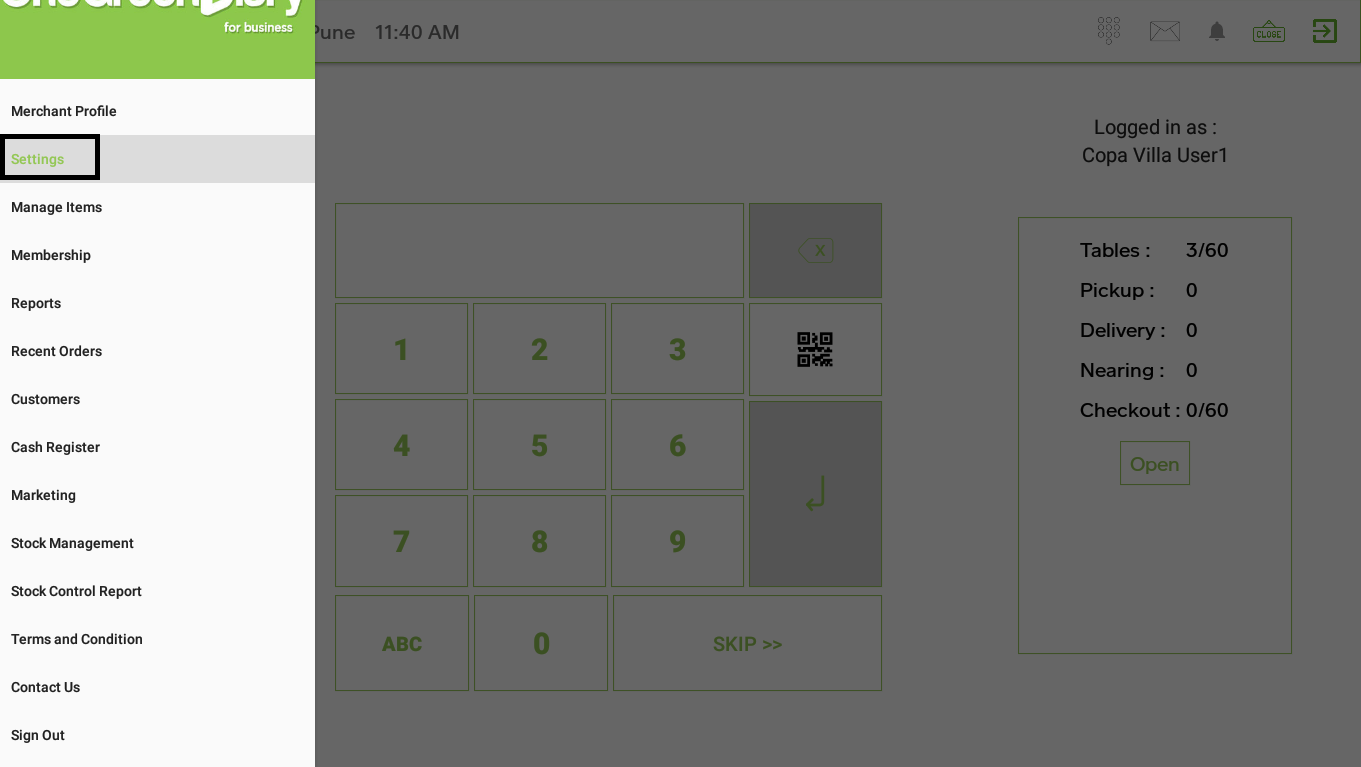
Open App > go to ‘Settings’ from the menu symbol 
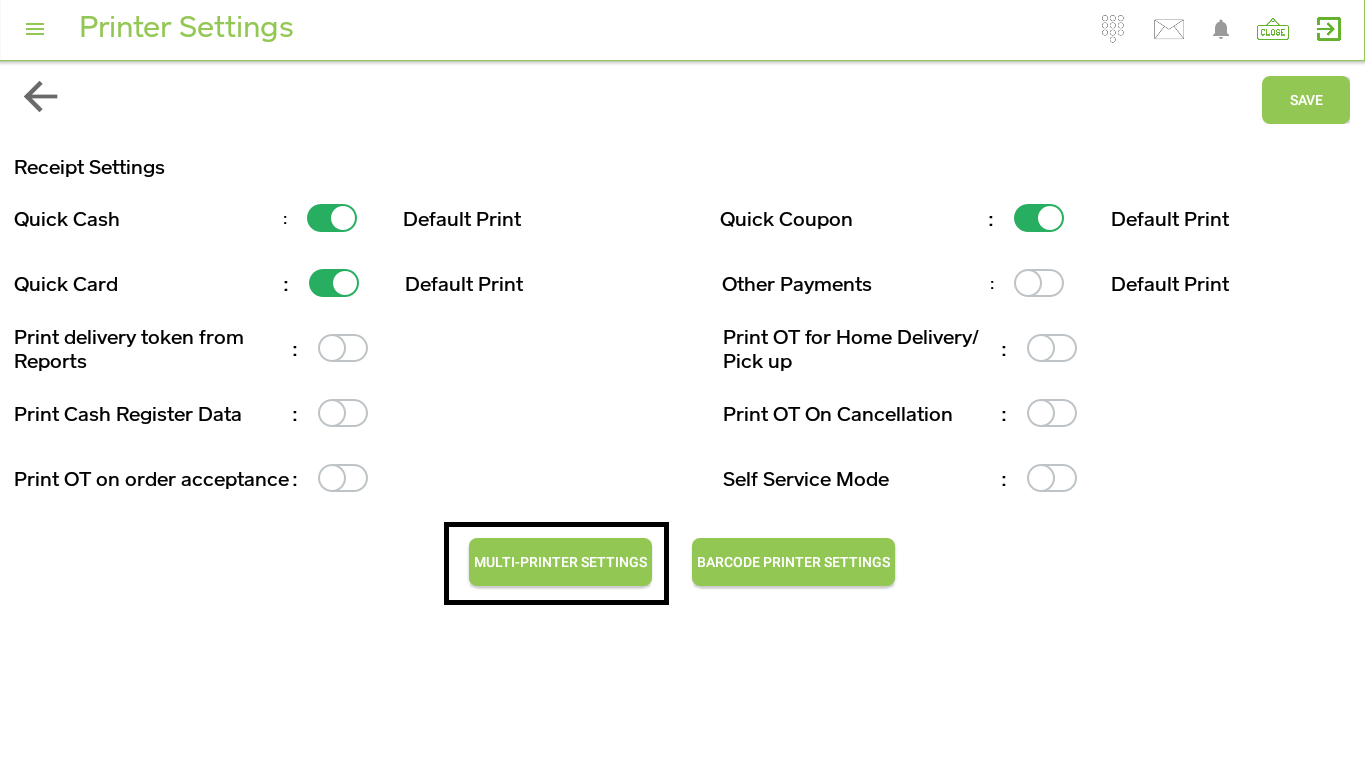
Click on printer setting > click on “MULTI-PRINTER SETTING”.
 Click on “ADD PRINTER” > the pop up will show on screen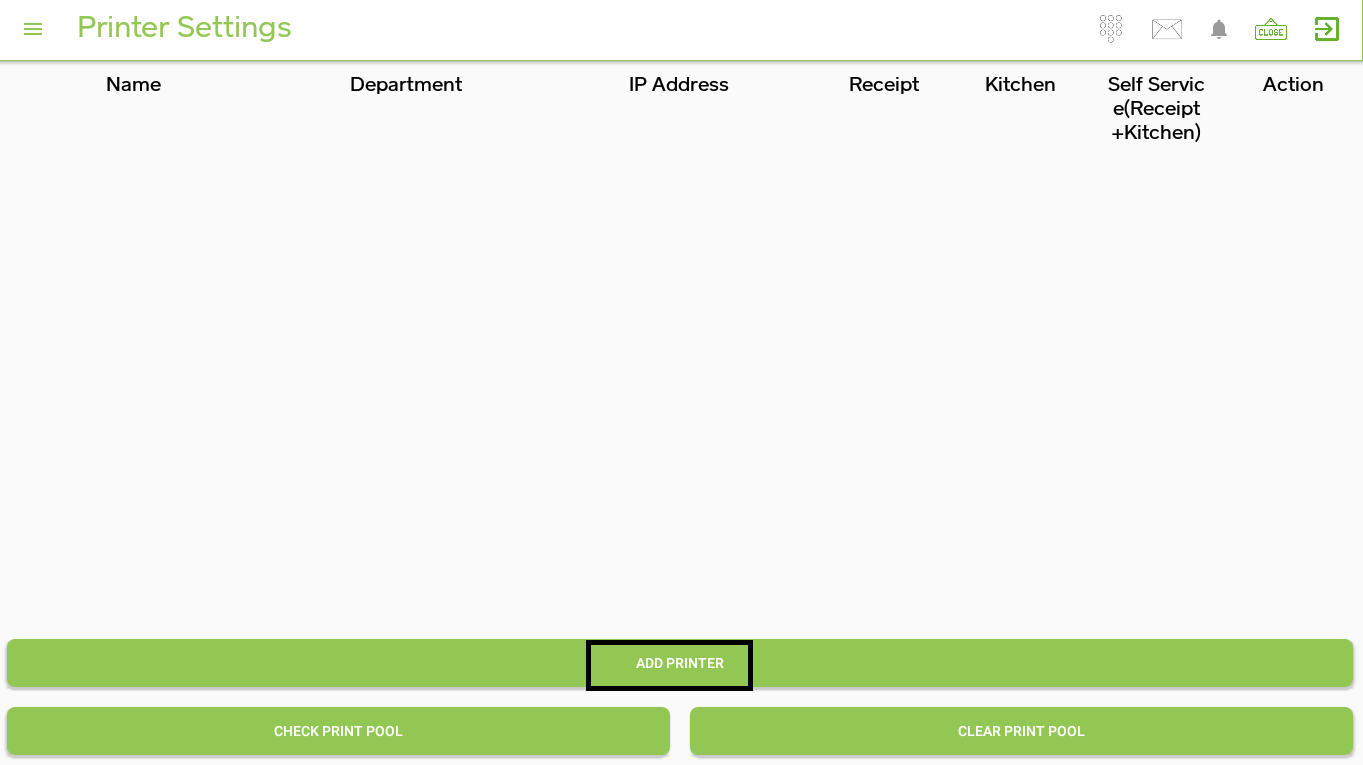
Add below details :
Printer name:As per requirement (KOT /Receipt)
If the department is present, select the department.
Quantity :1
Paper size :3 inches./ 2 inches.
(add a Bluetooth printer) Select Bluetooth printer/Epson Bluetooth printer from the list of select printers from settings.
If adding a printer for a receipt then select template receipt.
Click on select template > select Template name from the list.
Tick all the checkboxes use the same for.
Click on save. A receipt printer will be created here.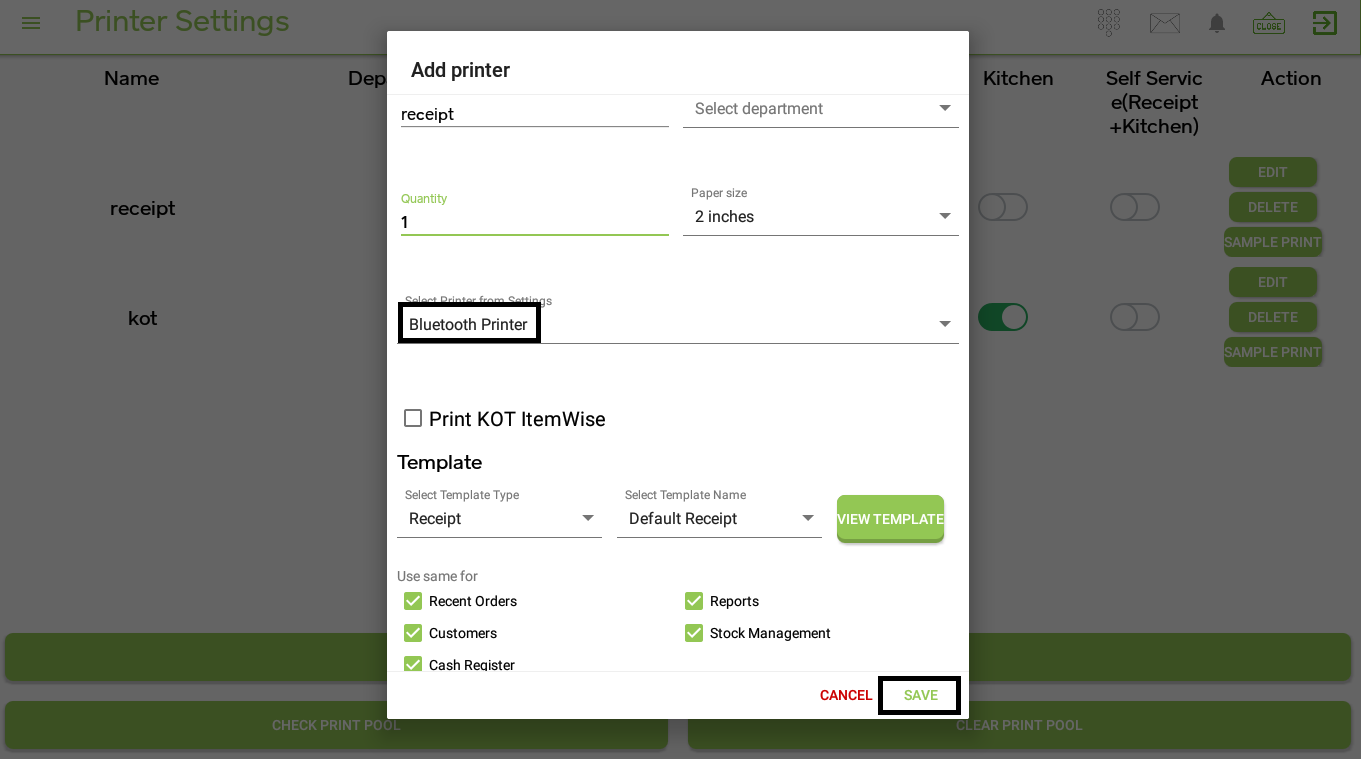
Turn on the receipt switch.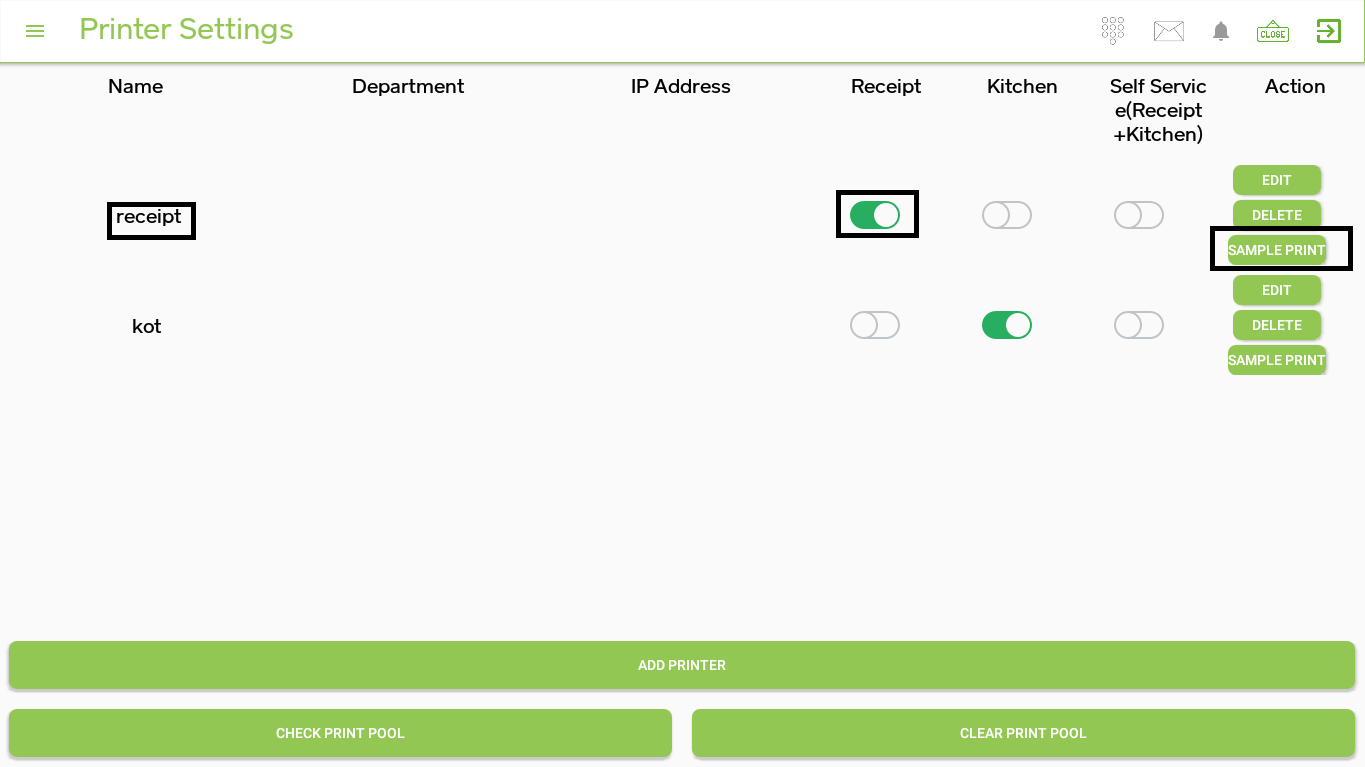 sample print