Rise POS
    • Pricing
    • Support
    Get Started

    How to create a chef incentive and view incentive report?

    Feb 20, 2023•1 min read•Updated Sep 2, 2023
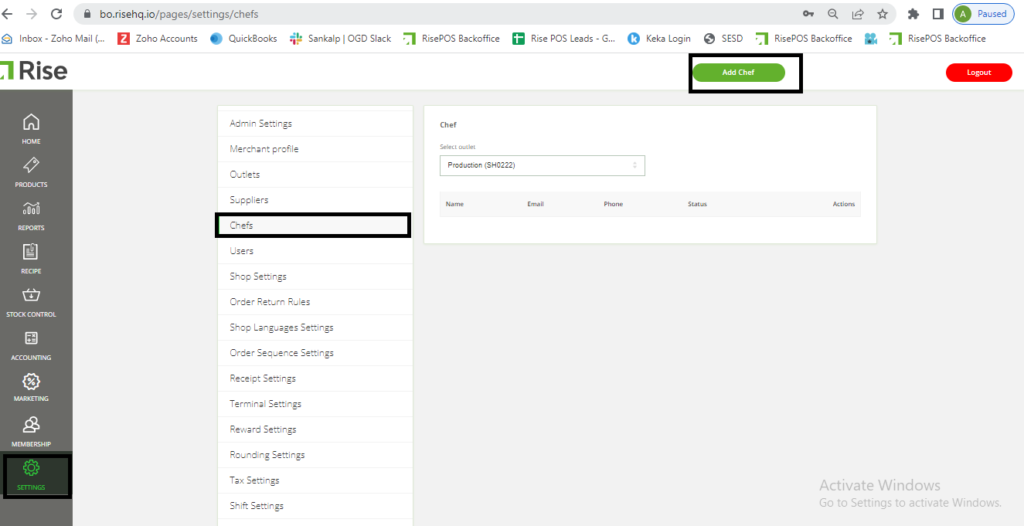
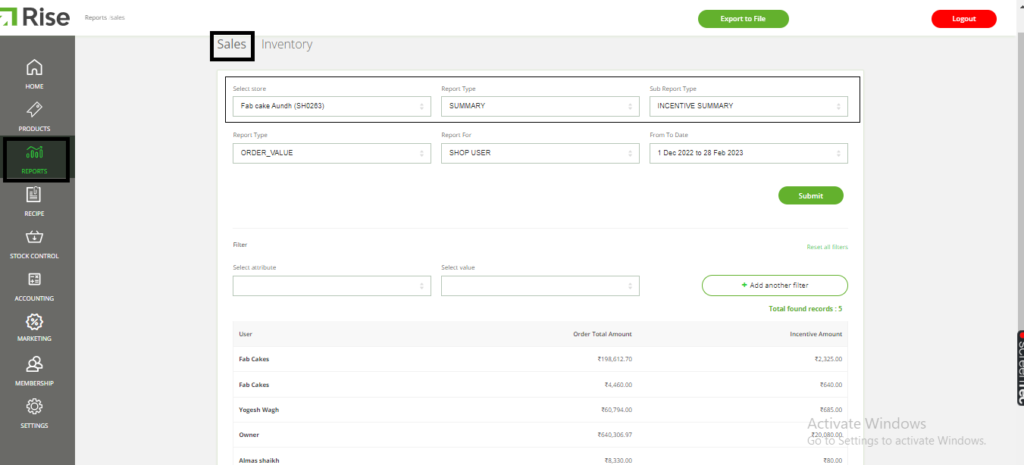
    When a special order is received, you have the flexibility to assign the order to any chef with a fixed incentive. Once the order has been assigned, you can generate the incentive report. Here are the steps to create a chef and an incentive:
    To create a chef:
    1. Navigate to the back office.
    2. Click on “Settings”.
    3. Select “Chef”.
    4. Choose the relevant store.
    5. Add the chef’s details.
    6. Turn on the “is active” switch.
    7. Click on “Create chef”.
    To create an incentive:
    1. Go to the back office.
    2. Click on “Settings”.
    3. Select “Incentive setting”.
    4. Choose the store for which you want to create the incentive.
    5. Add all the necessary details.
    6. Click on “Add Incentive”.
    Note: An incentive report will be automatically generated upon dispatching the order from the production or central kitchen.

    More Help Topics

    Still Need Help?

    Contact our support team for assistance with your questions

    Rise POS

    Cloud-based POS solution for modern bakeries and restaurants.

    4.5 on Google Play

    POS

    • Billing
    • Inventory
    • Production Planning
    • Reports

    Solutions

    • E-commerce
    • ERP
    • Third Party Integrations

    Rise ERP

    • Rise ERP Overview
    • Rise POS Accounting
    • Rise Production
    • Karo HR
    • Stock Ordering App

    Pricing

    • View Plans

    Company

    • About Us
    • Blog
    • Contact
    • Help Center
    • Privacy Policy
    • Terms of Service

    © 2026 Rise POS. All rights reserved.