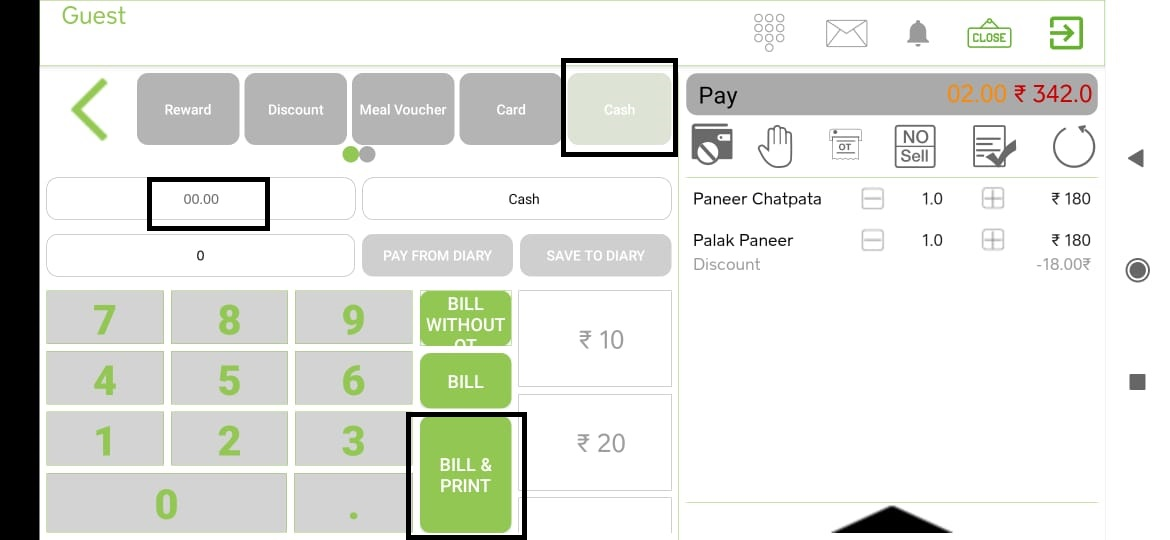
Please follow the steps for Regular discounts
-
Login to back-office > from the left menu go to ‘MARKETING’ > select ‘Discount & Offers’ tab > click on ‘New Campaign’ button > add below mandatory details
Campaign Name
Select Shop
Select Order Type
Select Start Date & Time and End Date & Time
Select Discount Type (Regular discount) for Giving Discount for Item
Enter a Discount value in Percentage
Minimum Order Value
Select Category of Item
Select Item on which you want to give a discount
Enter Minimum Item Purchase
Tick on Apply per Item and Auto Apply
Click on Save Campaign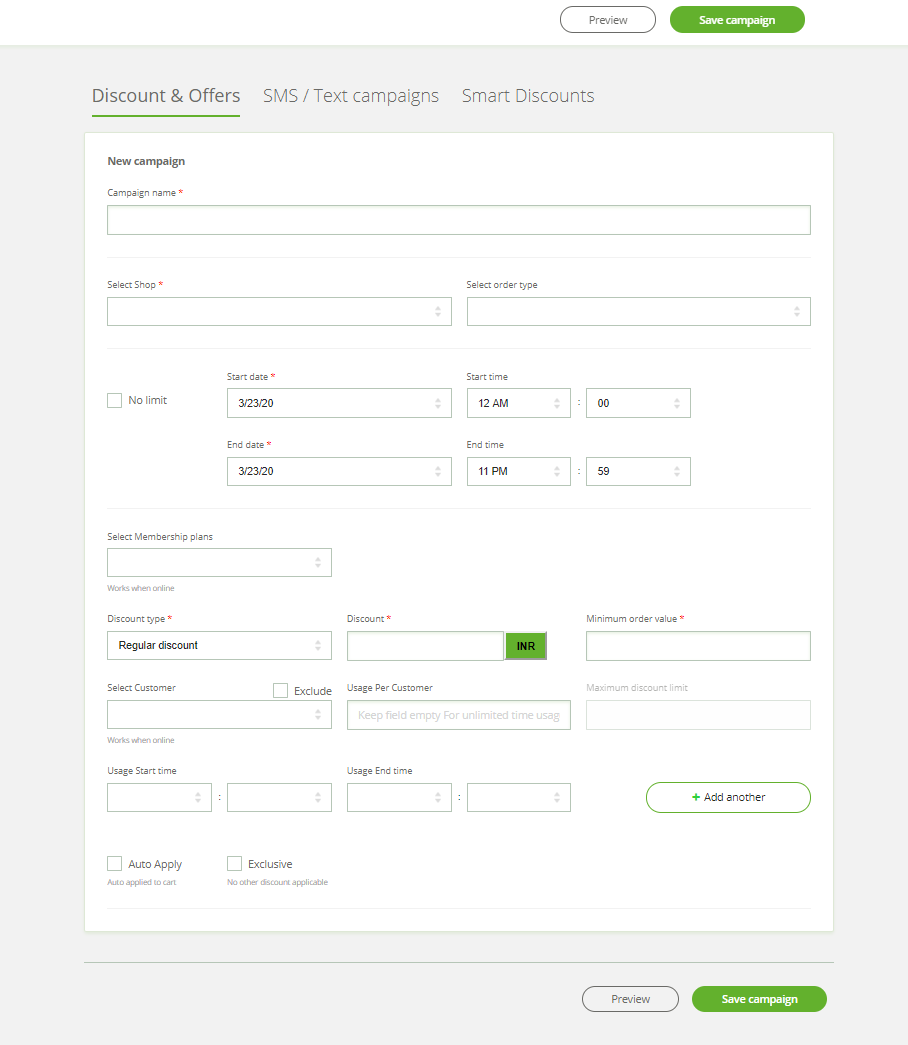
Note: If clicked on ‘Auto Apply’, a discount is applied immediately after adding an item in the cart, and if clicked on ‘Exclusive Discount’ follow the below process on ‘Android POS’ to apply a discount on the item.
Add Item in cart > click on ‘Pay’ option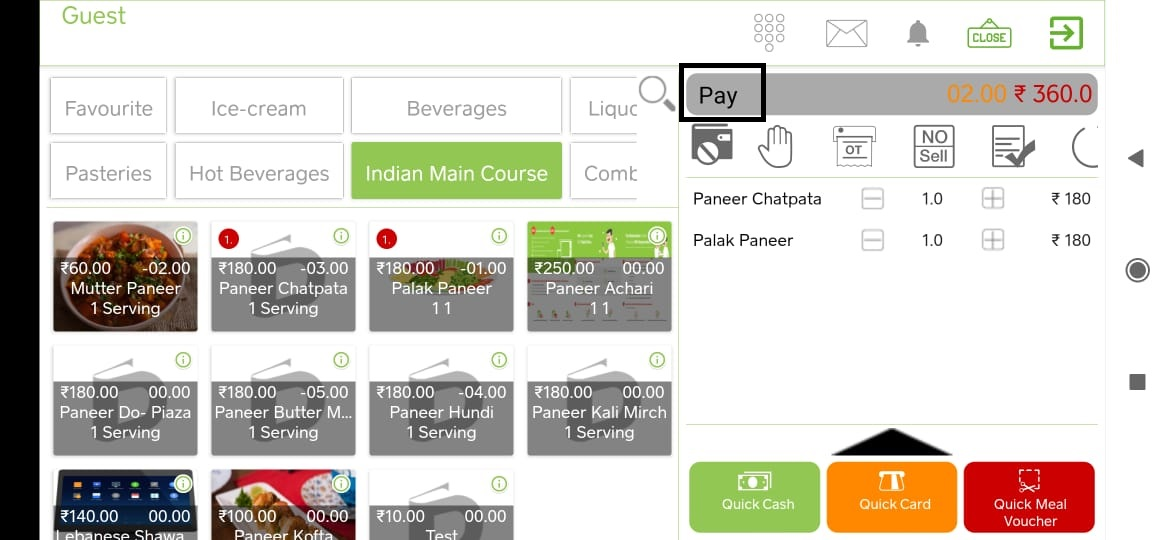
Select ‘Discount’ option > drop-down option will come on screen > select discount which you want to give on a particular item.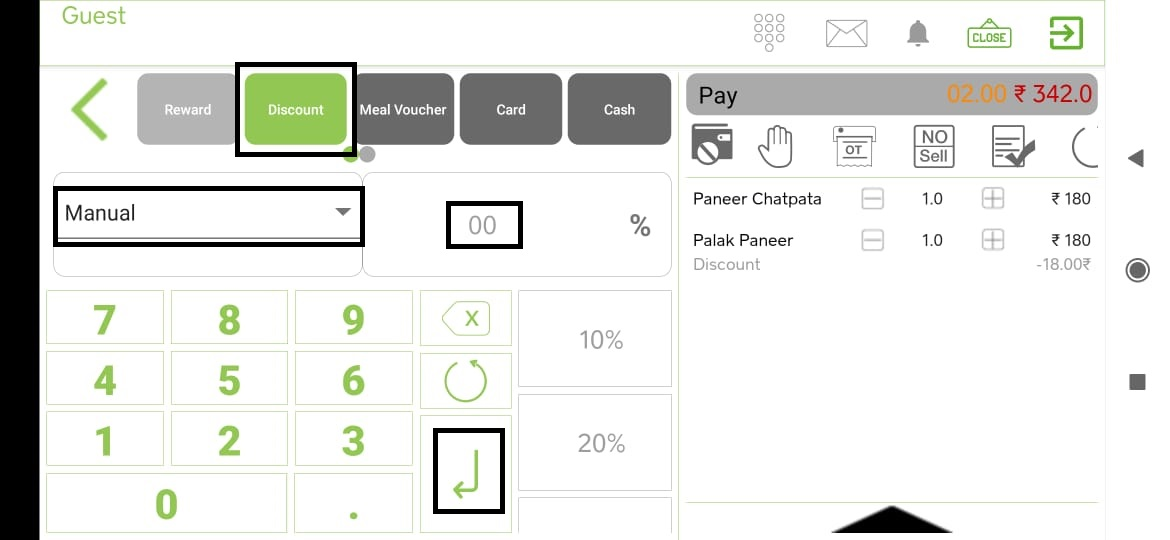
Click on payment type (eg. cash) > enter the bill amount and click on the ‘Enter’ option and print the bill.